Configuration
In order to integrate Chatlevel with your Typebot chatflows, four steps are required.- Obtain an API Key in your Typebot account
- Obtain your Typebot chatflow’s Start Chat URL
- Add the Typebot integration to your Chatlevel account
- Link your Typebot integration to one of your devices
1. Getting your API Key from Typebot
Before you add the Typebot integration in Chatlevel, you should first obtain your API Key in your Typebot account. Within Typebot, follow the below steps to obtain your API Key:- Navigate to your dashboard
- Click Settings and Members
- Click My account
- Click Create under the API tokens section
- Enter a name for the API token
- Click Create token
- Copy the API token displayed on screen
2. Obtaining your Chatflow’s Start Chat URL
In order for Chatlevel to know where to reach your Typebot chatflow, you need to obtain your chatflow’s Start Chat URL. Within Typebot, follow the below steps to obtain your Start Chat URL:- Navigate to the chatflow you want to use with Chatlevel
-
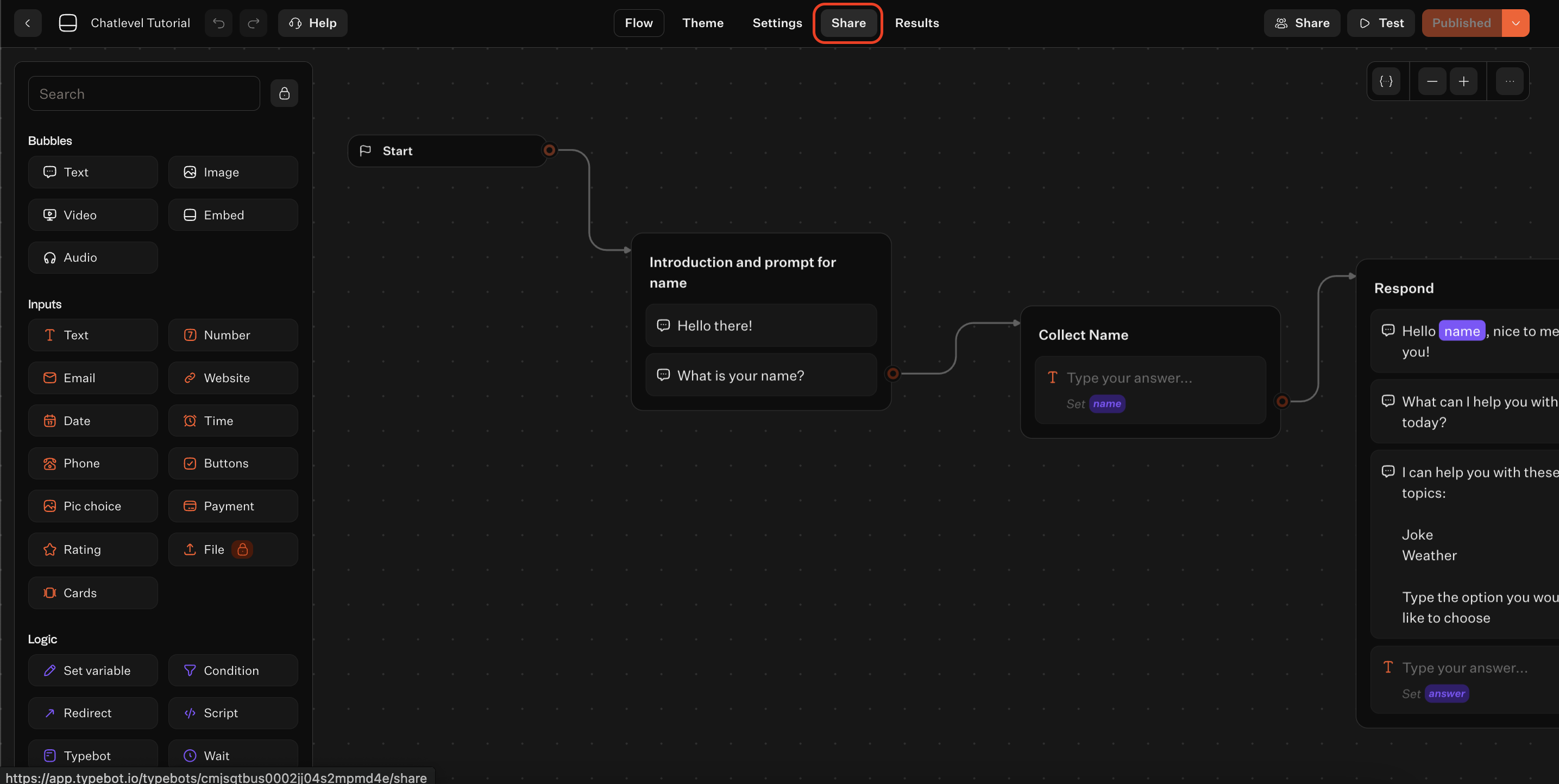
Click Share (see screenshot below)
- Click API
-
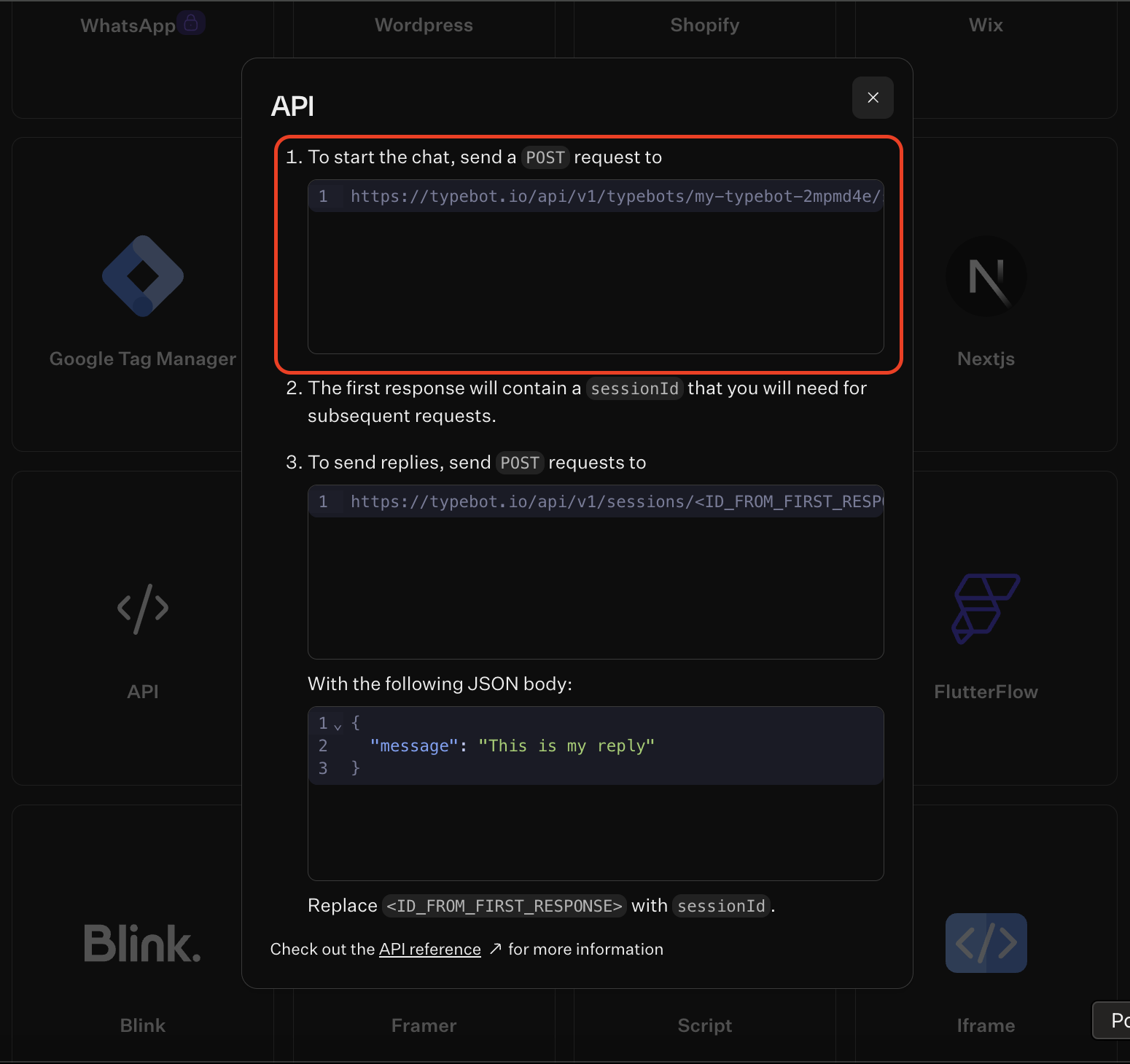
Copy the Start Chat URL (see screenshot below)
3. Setting up the Typebot integration
Now that you have an API Key, we can add the Typebot integration to your Chatlevel account. Within Chatlevel, follow the below steps to set up the Typebot integration:- Navigate to integrations
- Click Add integration
- Select Typebot
- Assign a name to your Typebot integration
- Insert the Start Chat URL (see section 2)
-
Under Authorization, add the API Key (see section 1)
Ensure that you include the full API Key including Bearer, i.e. Bearer xxxxyyyyzzzz
-
Set the maximum duration of a session
Chatlevel ends sessions automatically based on Typebot’s API response, but if users don’t finish the full Chatflow, the session will end automatically after this duration.
- Click Create
4. Link Typebot integration to a device
Once you have a Typebot integration set up, you need to link your integration to one of your devices. Within Chatlevel, follow the below steps to link your Typebot integration to a device:- Navigate to Devices
-
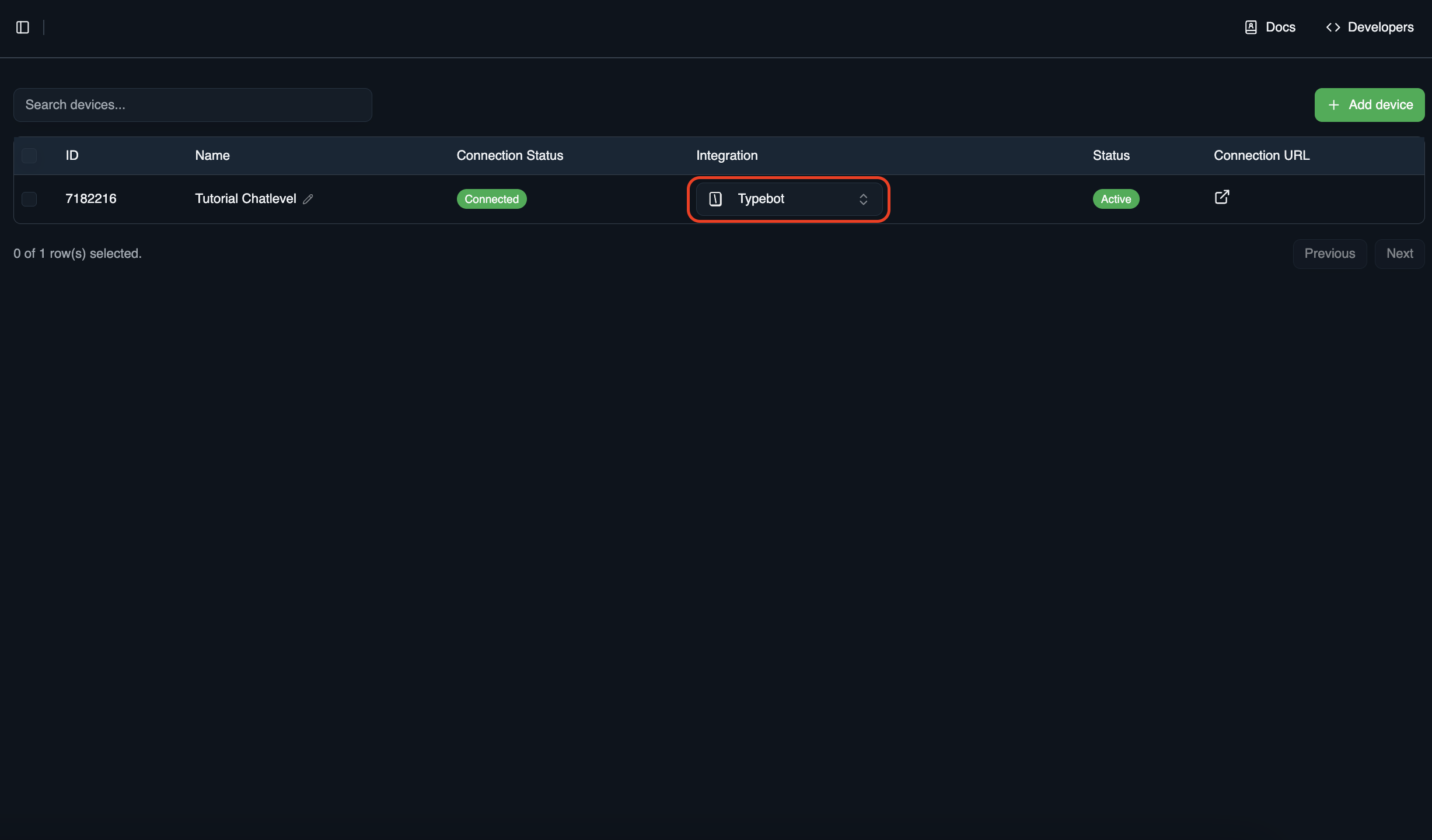
For the device you want to link, click the Integration dropdown (see screenshot below)
- Select the Typebot integration you set up (see section 3)
- Done!
Usage
When using Typebot in combination with Chatlevel, a few things should be noted.- Chatlevel’s Typebot integration currently only supports sending text messages. Images or other non-text messages will not be processed. We are introducing support for more message types soon.
- Since Chatlevel allows you to use the normal WhatsApp API instead of the WhatsApp Business API, things like buttons are not available and will not work with Chatlevel. The normal WhatsApp API only supports plain messages and media.